🐛 GitHub Issue
1. Click Submit New Prompt
The skill
1. Click [**Submit New Prompt**](https://github.com/YouMind-OpenLab/awesome-gemini-3-prompts/issues/new?template=submit-prompt.yml) 2. Fill in the form with prompt details and image 3. Submit and wait for team review 4. If approved (we'll add `approved` label), it will automatically sync to CMS 5. Your prompt will appear in README within 4 hours **Note:** We only accept submissions via GitHub Issues to ensure quality control. See [CONTRIBUTING.md](docs/CONTRIBUTING.md) for detailed guidelines. --- ## 📄 License Licensed under [CC BY 4.0](https://creativecommons.org/licenses/by/4.0/). --- ## 🙏 Acknowledgements - [Payload CMS](https://payloadcms.com/) - [youmind.com](https://youmind.com) --- ## ⭐ Star History [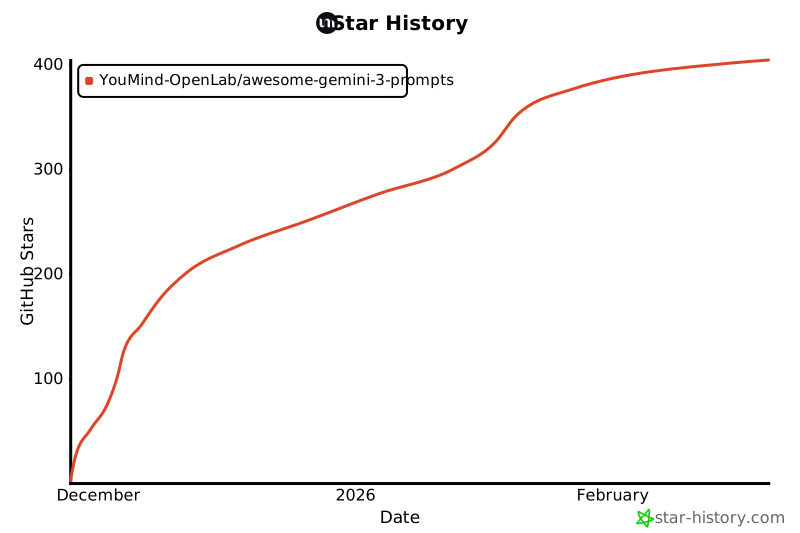](https://star-history.com/#YouMind-OpenLab/awesome-gemini-3-prompts&Date) --- <div align="center"> **[🌐 View in Web Gallery](https://youmind.com/gemini-3-prompts)** • **[📝 Submit a Prompt](https://github.com/YouMind-OpenLab/awesome-gemini-3-prompts/issues/new?template=submit-prompt.yml)** • **[⭐ Star this repo](https://github.com/YouMind-OpenLab/awesome-gemini-3-prompts)** <sub>🤖 This README is automatically generated. Last updated: 2026-08-25T12:39:34.733Z</sub> </div>
How to install it
Gemini

1. Open Gems → New Gem.
2. Paste the text below into the instructions field.
3. Save. The Gem appears in the sidebar and keeps the instructions
   across conversations.

In Google AI Studio the same text goes in System instructions.
Did it work for you?
Sign in to write here.Where it came from
2025 YouMind OpenLab